


What do you need?

Your smartphone

A computer

An eID card reader

Your eID and PIN code
1. Download the itsme® app on your smartphone


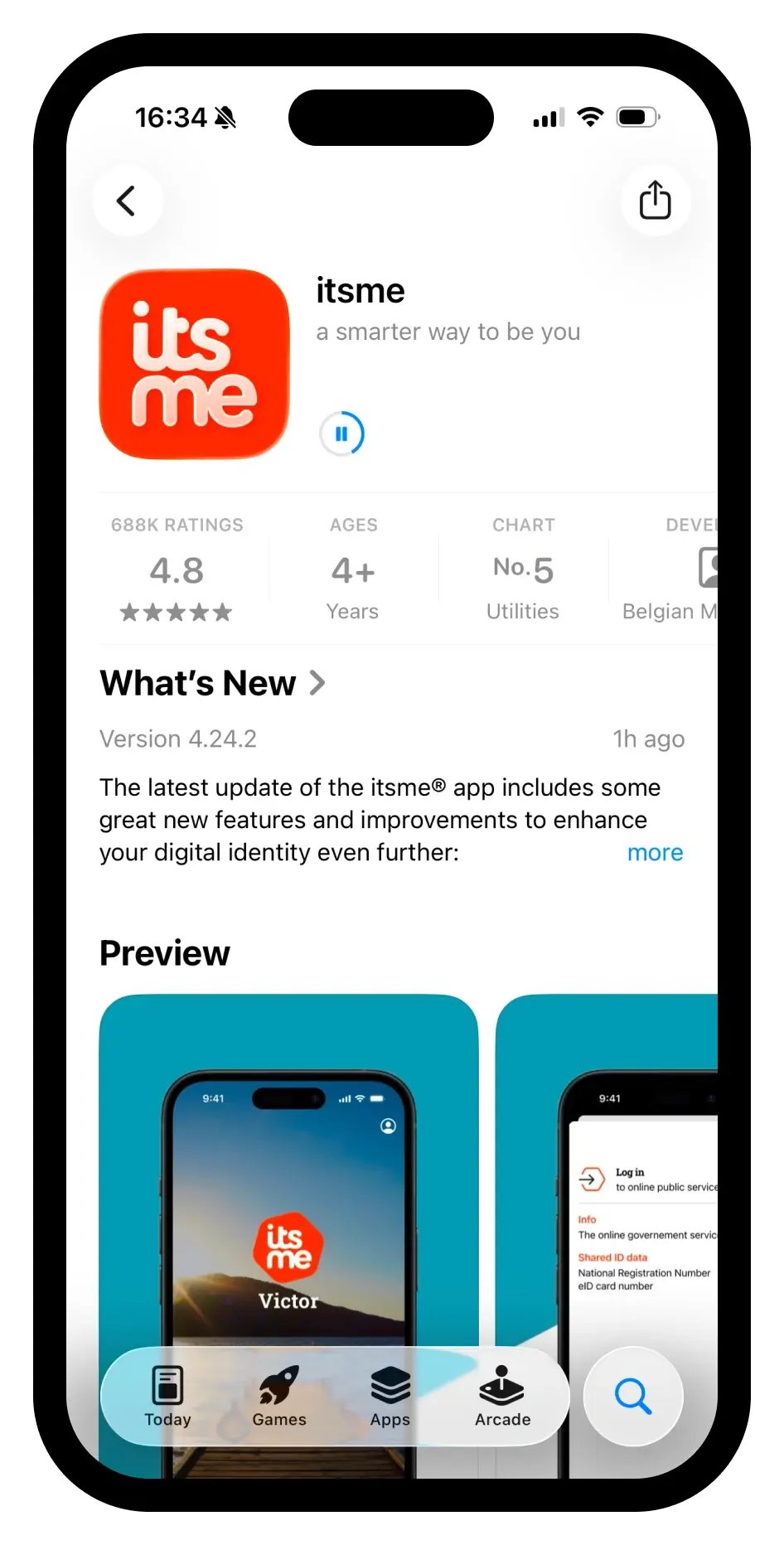 Step=1_download, Device=Phone
2. Surf via your computer to this link
Enter your phone number and e-mail address. Make sure to select the correct country code from the dropdown menu.
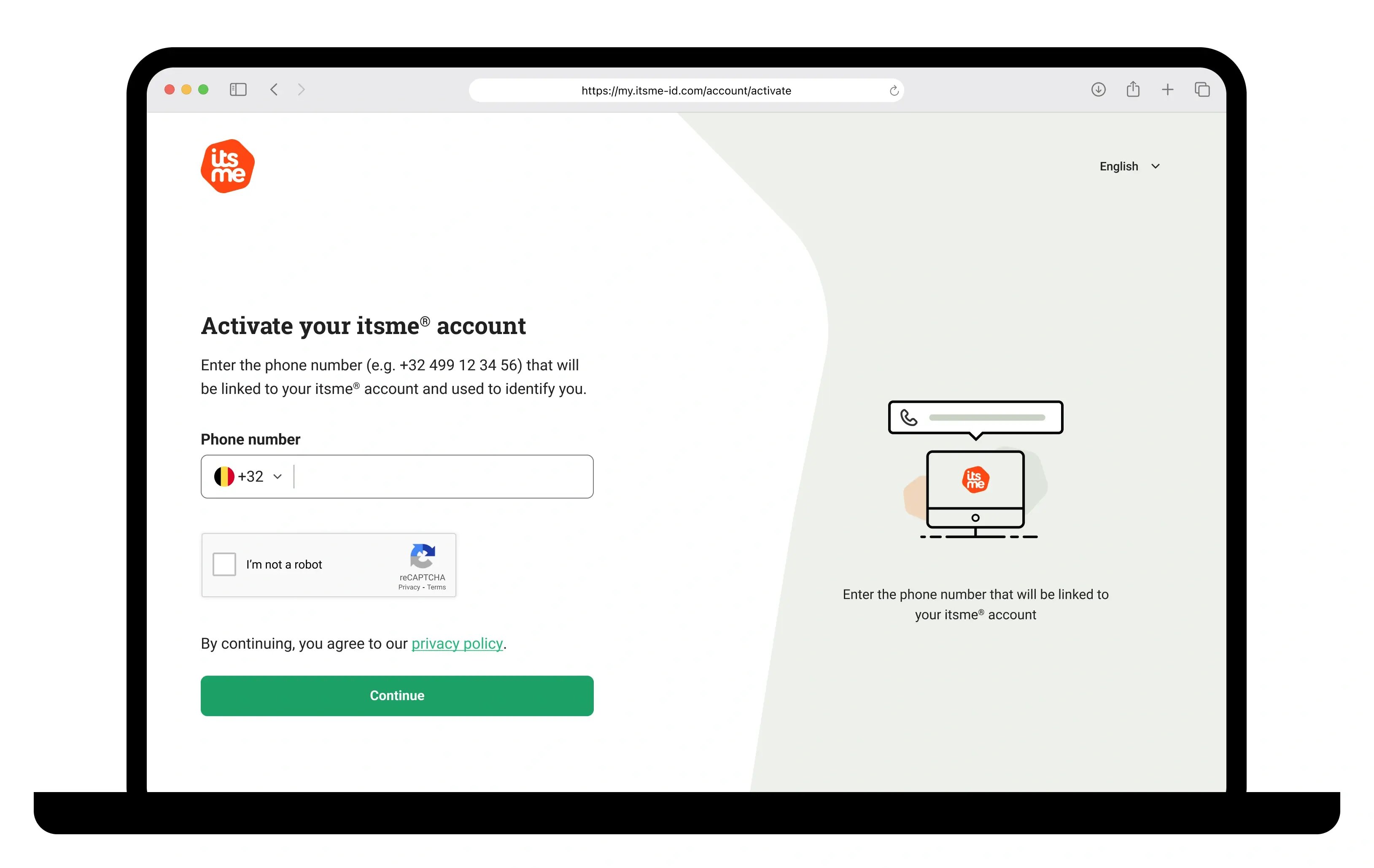
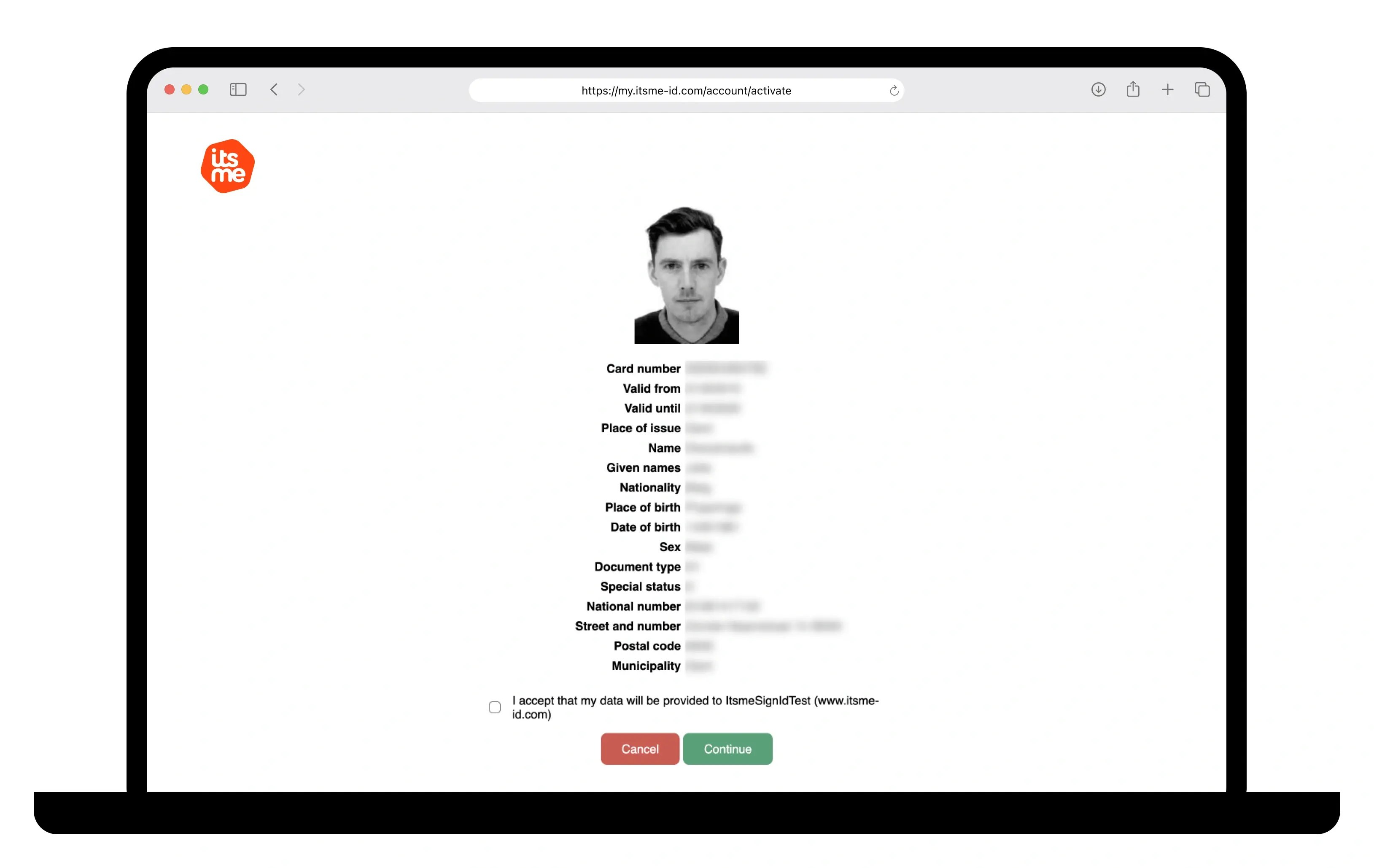
3. Identify with your eID card
Connect your card reader and insert your eID card.
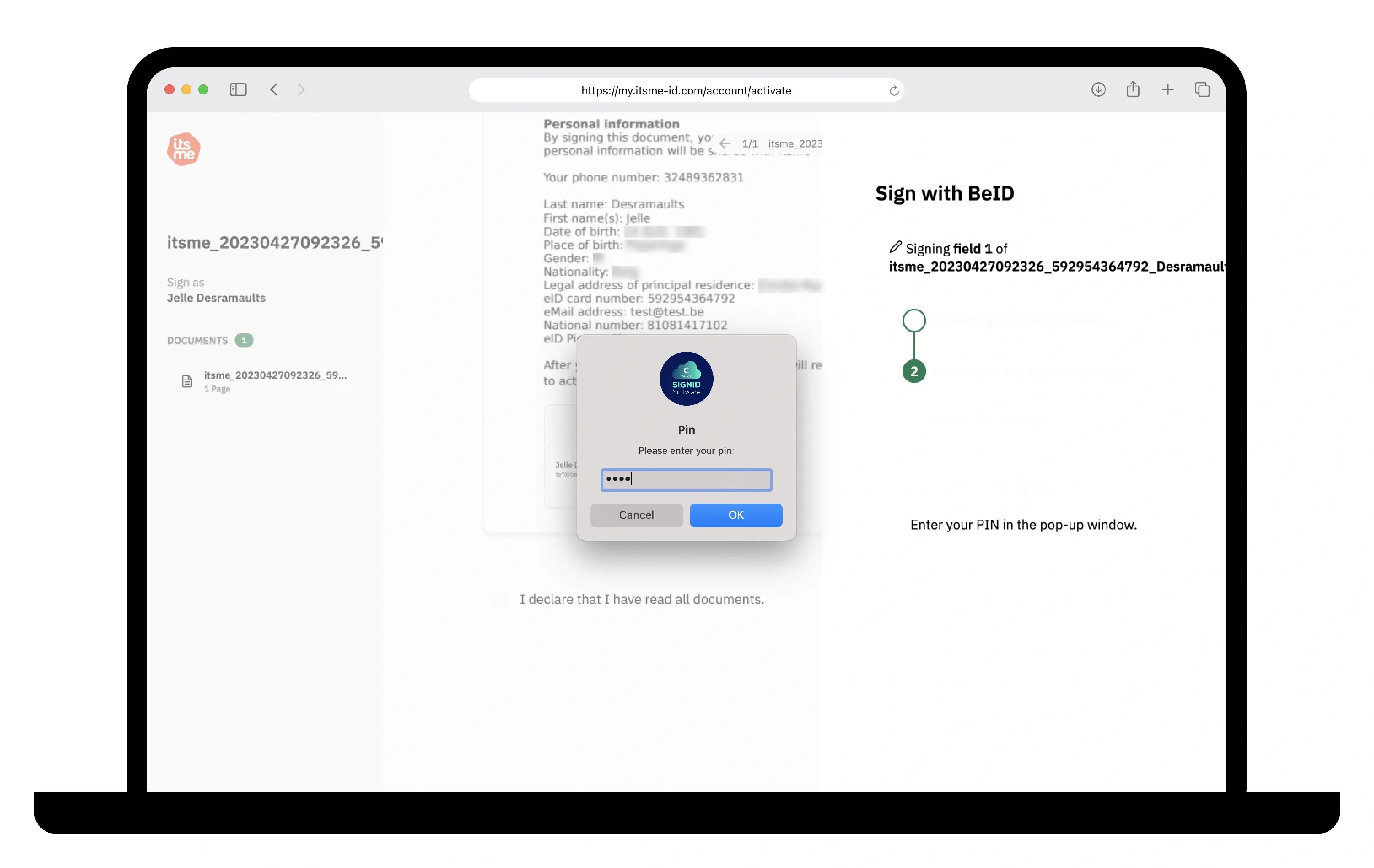
4. Read and sign the itsme® contract
Sign the itsme contract by entering the PIN code of your eID.
5. Receive your identification token
You will have to enter this code into the app later.
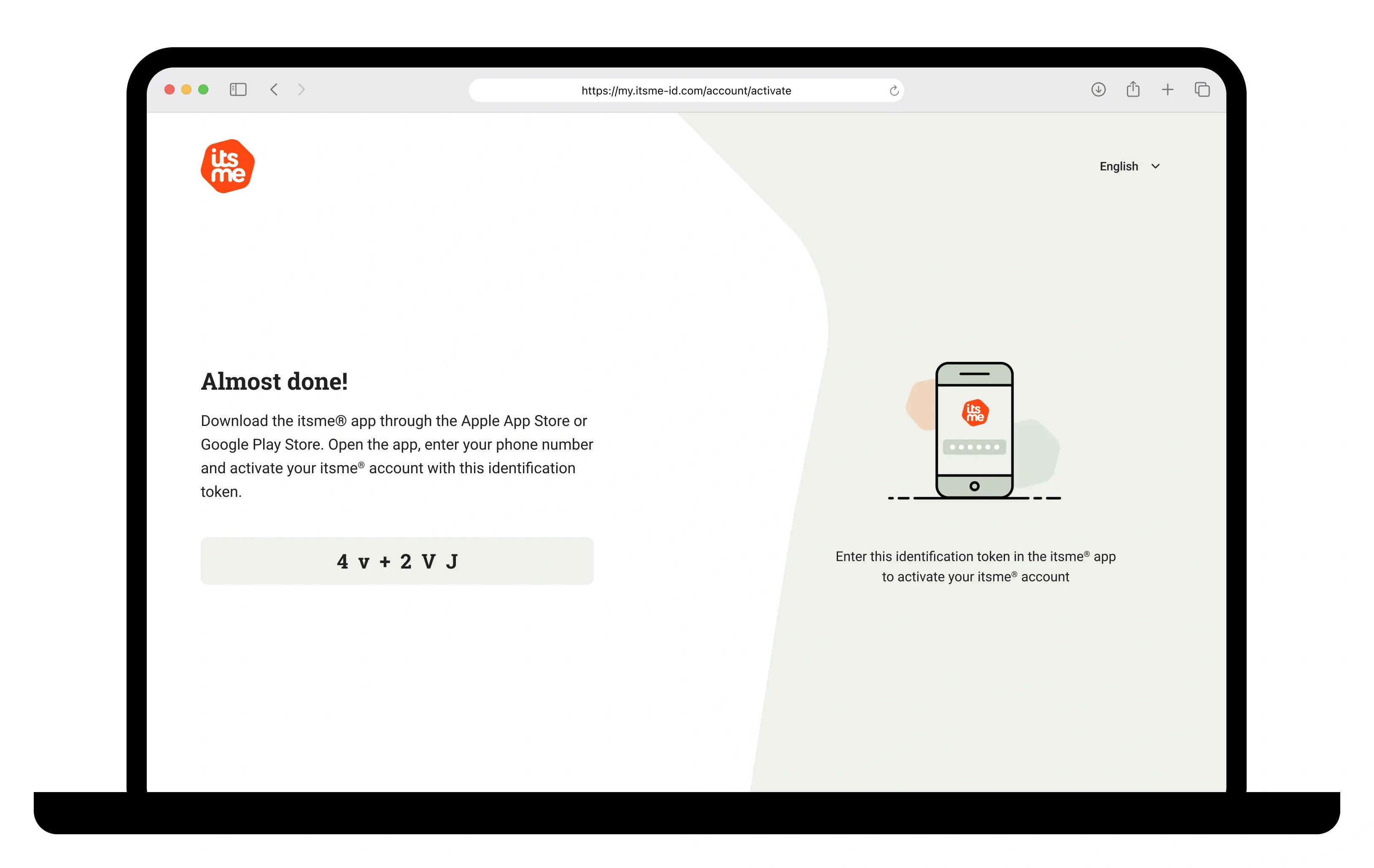
6. Take out your smartphone
Open your itsme® app and enter your phone number.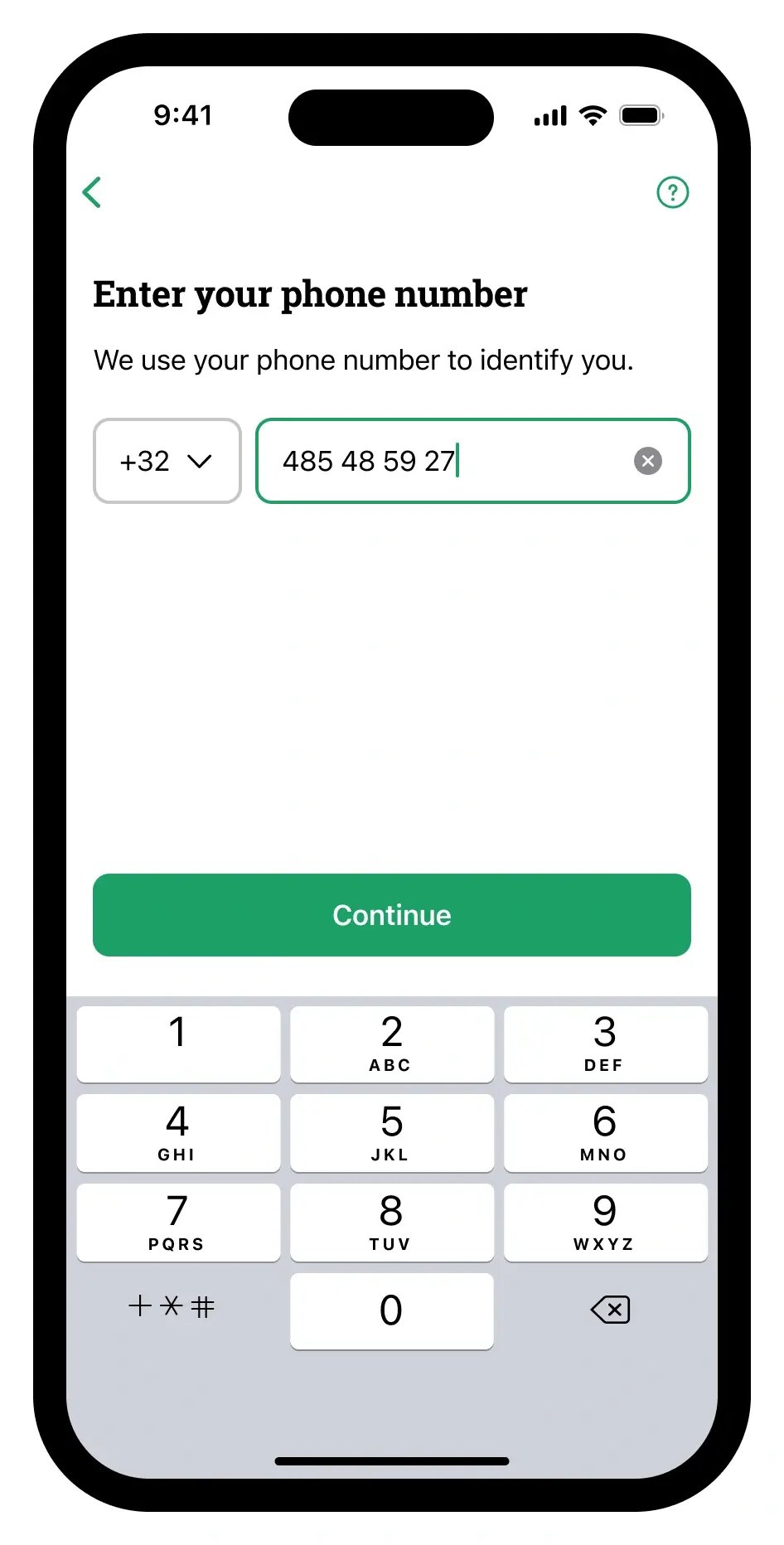 Step=2_phone nr, Device=Phone-1
7. Enter the identification token
In the itsme® app, enter the identification token you received in step 5. Make sure to include CAPITAL letters and punctuation.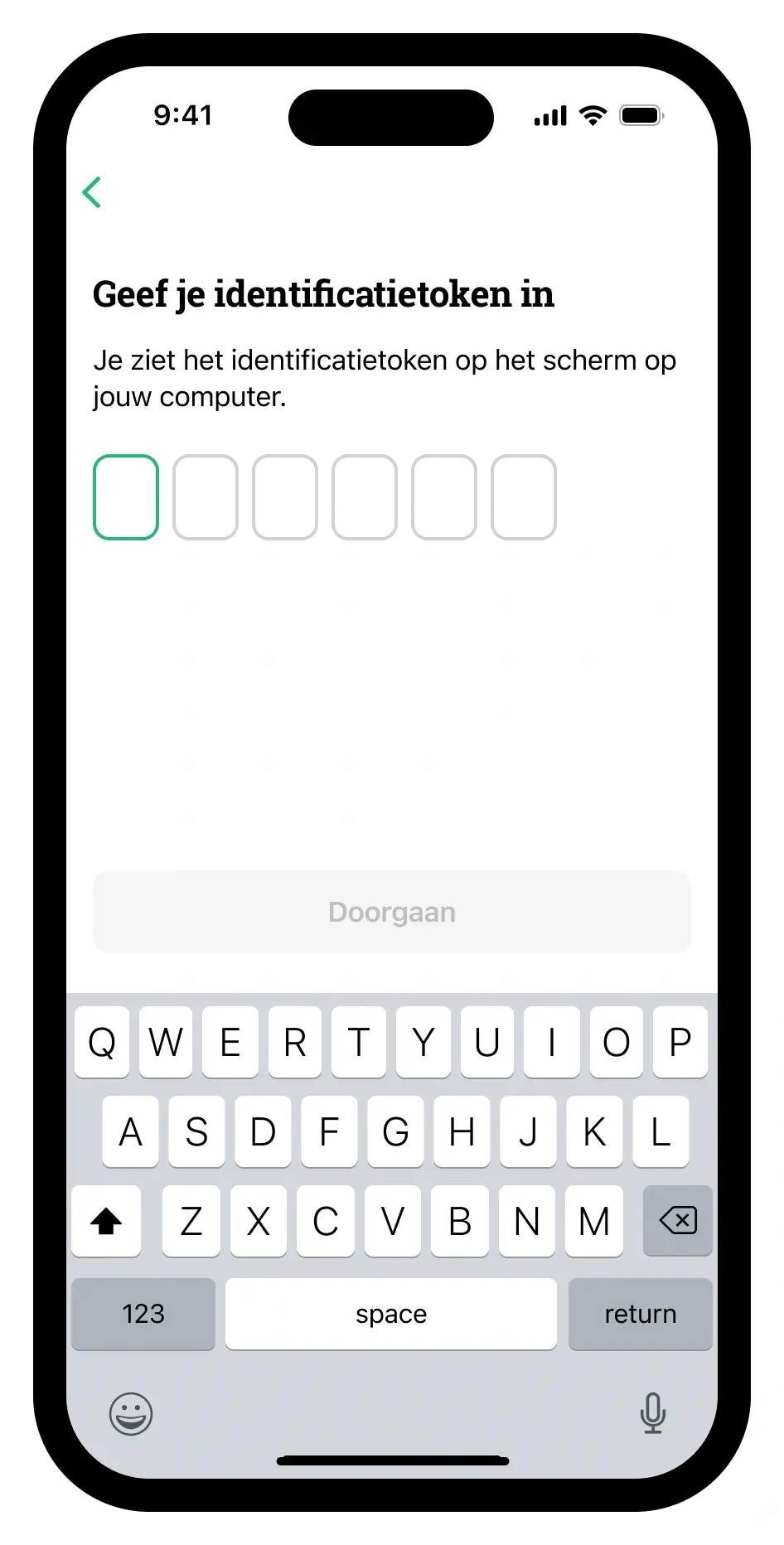 Step=17_token, Device=Phone
8. Enter the verification code
You will receive a text message with a verification code from the number 8836. Enter the 5 digits into the app.
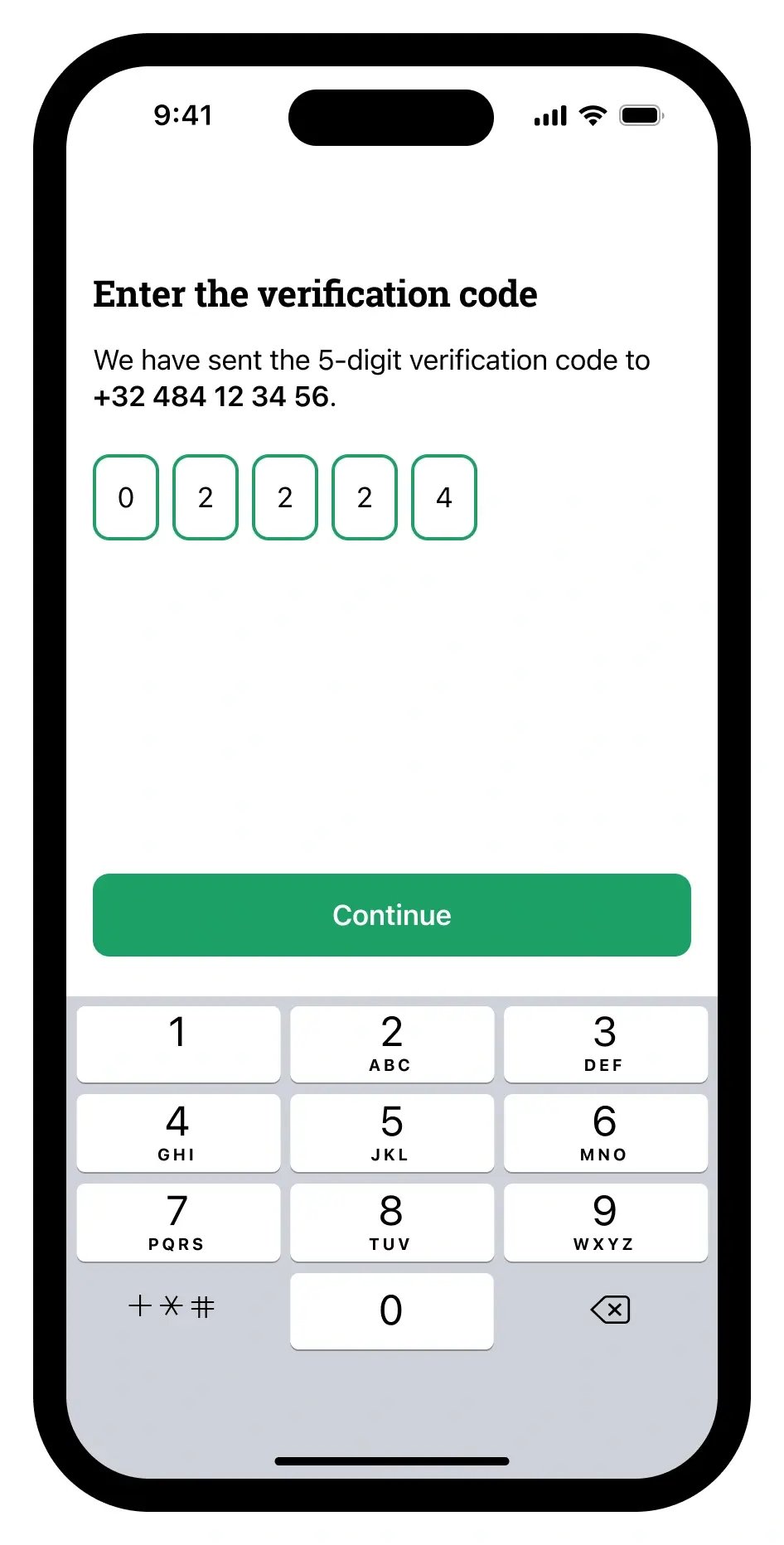 Step=8_enter verification code, Device=Phone
9. Choose your itsme® code
And confirm again.
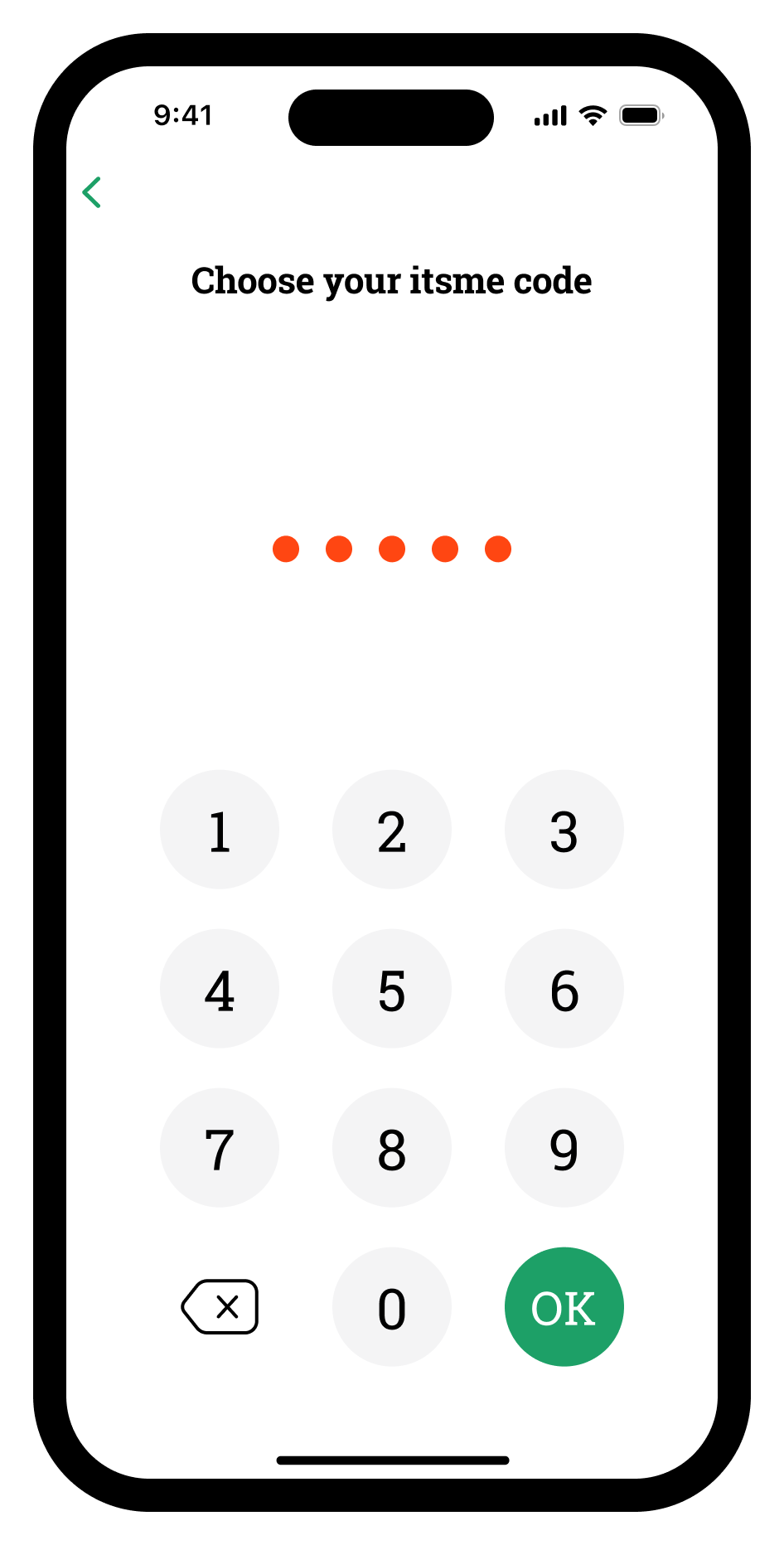 Step=10_enter itsme code, Device=Phone
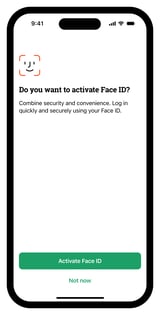
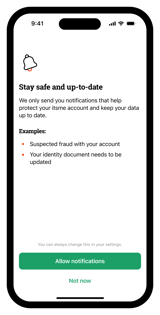
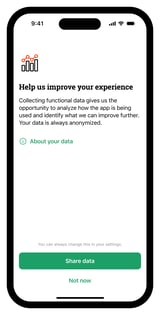
10. Set up security and preferences
Activate touch ID, fingerprint or face ID if you wish. Set up your notification and data sharing preferences.
10. Your digital identity has been successfully activated!
Thanks for your trust.
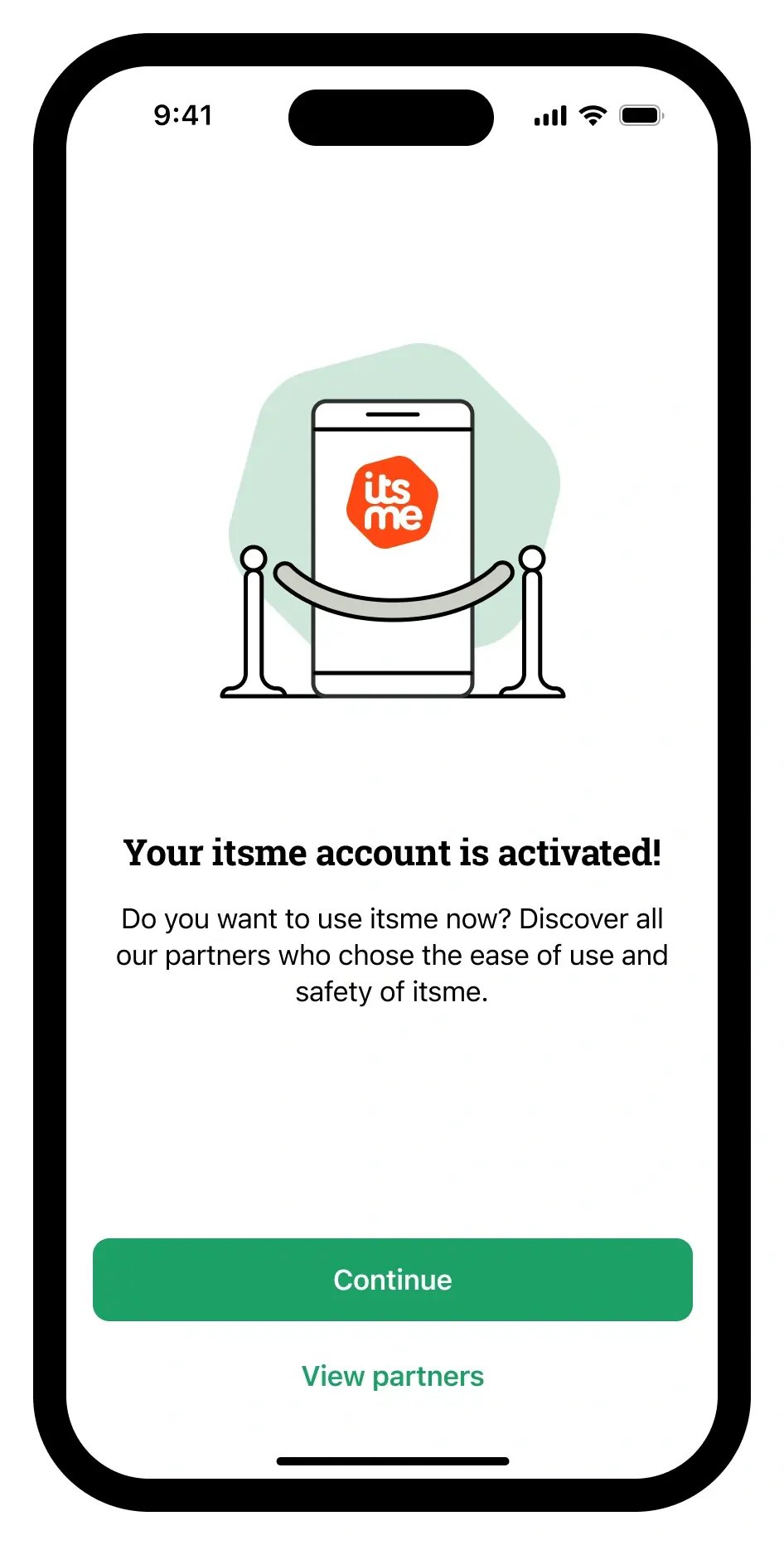 Step=15_account activated, Device=Phone