


 Smartphone
Your smartphone
Your smartphone
 NFC ID
Your ID document (NFC enabled)
Your ID document (NFC enabled)
1.
Download the itsme® app on your smartphone.
Open the itsme® app on your smartphone. Ensure you locate the NFC symbol on the front or back of your identity document to confirm its eligibility.


 A mockup of a phone showing a simplified and stylized version of the itsme appversion
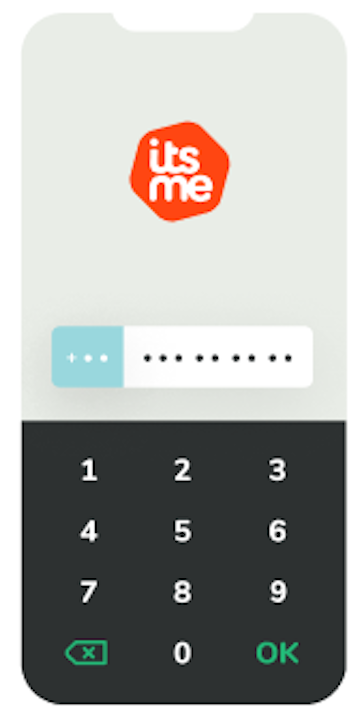 Stap_05_1633527993-eid-step-5
3.
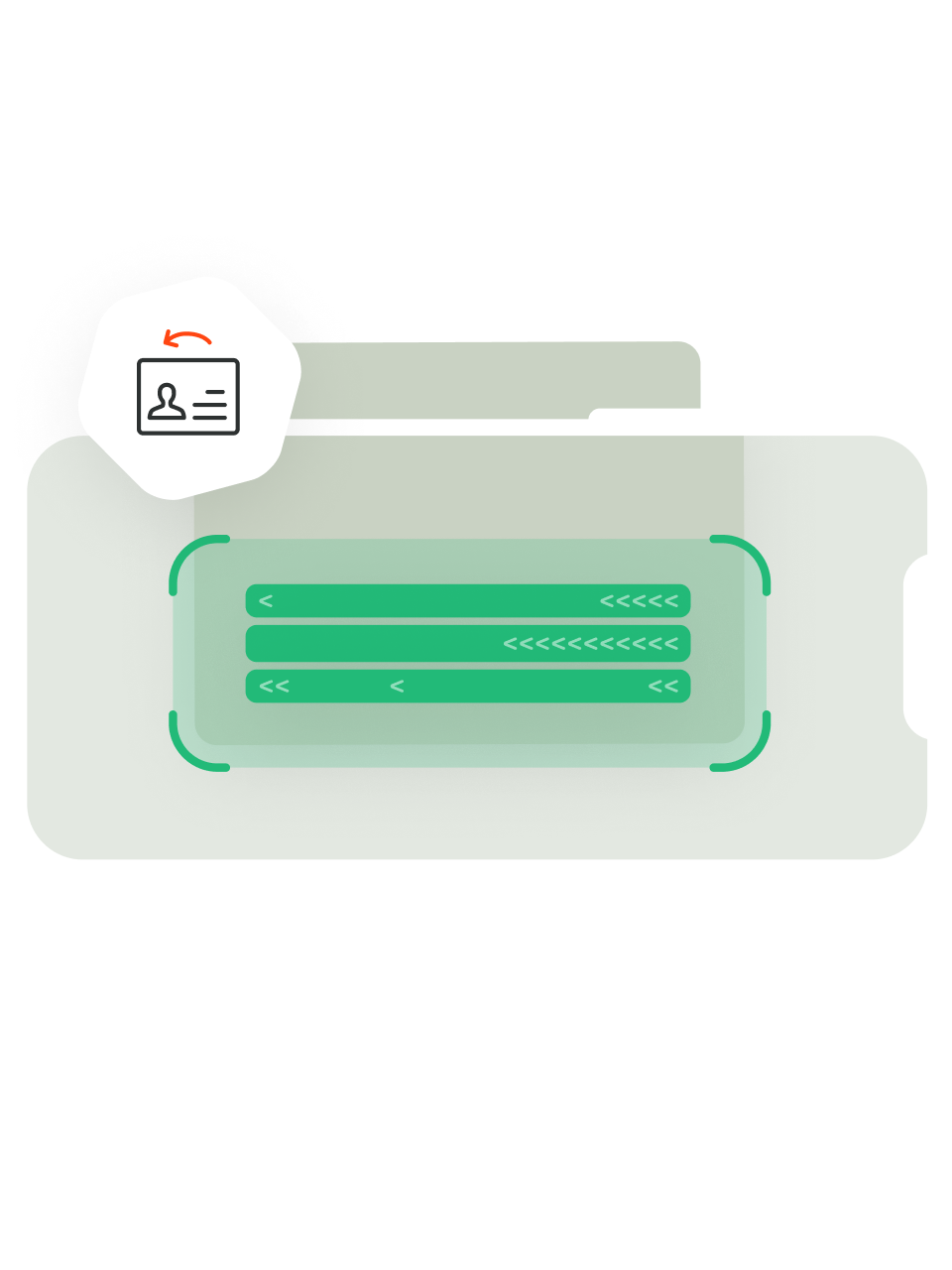
Scan the structured code on your ID document
For this step you'll have to enable your smartphone camera. Center the code on your ID document on the rectangle on the screen and wait for the digits of the structured code to light up.
 1648122386-create_nfc_2
4.
Read the identity data
Place your ID document against the top of the back of your device and try not to move your ID card while reading.
 1648122429-create_nfc_1
5.
Take a selfie
We compare the photo of your ID document with a selfie taken by you, to make sure it's you.
 1648122437-create_nfc_3
6.
Enter your verification code
You will receive a text message with a verification code (5 digits) from the number 8836. Enter it into the app.
 1648068137-create_eid_4
7.
Choose your personal itsme® code
Then choose your 5-digit personal itsme® code and confirm. Go passwordless and activate your touch ID, fingerprint or face ID.
 1648069109-create_eid_5
8.
Your digital identity has been successfully activated
You can use itsme® to log in, create new accounts, confirm transactions, and sign documents.
 Stap_09_1633528246-eid-step-9